 RefreshRank
How to Refresh Old Blog Posts: A Step-by-Step Playbook
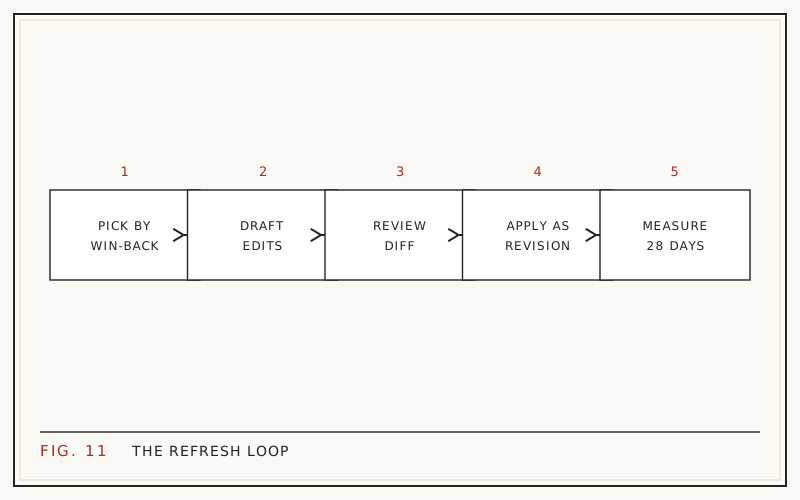
Refreshing an old blog post is a repeatable sequence, not an inspiration problem. Pick the pages that once earned traffic and lost it, read the queries they still rank for, then update the title, meta description, introduction, body facts, FAQ, and date. Approve every change yourself, publish, and compare 28-day windows before and after.
The work pays off because your archive is where most of your traffic already lives. HubSpot reported that 76% of its monthly blog views came from posts published before that month, and that updating old posts raised their monthly organic search views by an average of 106% (HubSpot, 2015 analysis, page updated 2025).
This playbook walks the full loop: choosing targets, editing each element in the order that pays best, publishing with a rollback path, and measuring whether the refresh actually earned clicks back.
Why refresh instead of publishing something new?
Because an old post starts with assets a new post has to earn from scratch: existing rankings, existing links, crawl history, and a track record with real queries. A refresh moves a page that Google already understands rather than gambling on one it has never seen.
The internal math is usually lopsided. HubSpot's historical optimization program found 76% of monthly blog views came from older posts, and updating those posts increased their monthly organic search views by an average of 106% (HubSpot, 2015 analysis, page updated 2025). Those are one company's numbers from its own analytics, not a promise for your site, but the shape of the finding matches what most archives look like.
Refreshing is also cheaper. An hour on a page with a known traffic history beats an hour on a post competing with nothing to its name.
Which posts should you refresh first?
Refresh by win-back potential, not by publish date. Oldest-first wastes effort on pages nobody searched for. Newest-first ignores the pages quietly bleeding the most clicks.
A page is a strong candidate when three things line up:
- It earned real traffic at some point, so demand is proven.
- Clicks have fallen materially against the same window last year.
- It still sits close enough to page one that improvement is realistic.
A page ranked 47th with three lifetime clicks is not a refresh target; it is a pruning question. A page that slid from position 4 to position 9 on a query with steady impressions is the best hour you will spend this week. The scoring detail is in how to prioritize content updates.
Step 1: Build the decay list from Search Console
Start in Google Search Console, not in a content calendar. Open Performance, switch to the Pages tab, and compare a recent 28-day window against the same 28 days a year earlier. Add clicks, impressions, CTR, and average position as columns, then sort by the biggest click losses.
Export the top 20 to a sheet. For each URL, write down last year's clicks, this year's clicks, the position change, and the CTR change. That four-column view is enough to tell most stories.
Work in 28-day windows rather than calendar months so you compare equal numbers of weekends. The full walkthrough, including the export limits and the 16-month history ceiling, is in how to find decaying content in Google Search Console.
Step 2: Decide update, rewrite, or delete
Not every declining page deserves a refresh. Before editing anything, put each URL in one of four buckets: update it, rewrite it, merge it into a stronger page, or remove it and redirect.
The quick test is intent. If the page still answers the query people are typing and simply looks dated, update it. If the query has shifted and the page answers a question nobody asks anymore, a rewrite is the honest option. If two of your pages compete for the same query, merging usually beats editing both.
Getting this call right saves the most time in the whole process. The full framework, including the signals that point to each verdict, is in update, rewrite, or delete.
Step 3: Read the queries the page already ranks for
Open the page's own query list in Search Console before you write a word. Click the URL in the Pages tab, switch to Queries, and sort by impressions. You are looking for three things: queries you rank for but barely get clicks on, queries the page never intended to target, and phrasing that differs from the words in your title.
This is where most of the real editing direction comes from. A post written for 'content audit' that now collects impressions for 'how often should I audit content' is telling you exactly which section to add.
Working from real queries also keeps the additions honest. Updating and repurposing existing content was named a driver of content marketing success by 42% of marketers surveyed for Semrush's State of Content Marketing (Semrush, 2023), and the additions that pay are the ones your page already earns impressions for.
Step 4: Rewrite the title and meta description
The title is the highest-return edit on the page because it changes clicks without needing a ranking change. Rewrite it to mirror the dominant query, drop stale years, and keep it short enough to survive truncation.
Backlinko's analysis of four million search results found titles between 40 and 60 characters had an 8.9% higher average click-through rate than titles outside that range (Backlinko, 2025). Note what that does not say: question-style titles showed no significant advantage in the same study, so pick the phrasing that matches the query, not a formula.
The meta description is your only free ad copy. Answer the query in the first clause, name what the reader gets, and skip the adjectives. Patterns that hold up are in rewriting titles and meta descriptions for CTR.
Step 5: Put the answer in the first two sentences
Most old posts open with throat-clearing. A 2019-era introduction sets context for three paragraphs before answering anything, which loses both the impatient reader and the snippet.
Rewrite the opening so the direct answer to the title's question lands immediately, in plain language, in about 40 to 60 words. Then use the following paragraphs for the caveats, the context, and what the rest of the page covers.
This matters more now that fewer searches end in a click at all. If the visible answer is buried, the searcher has no reason to believe the page has one. The pattern, including how it interacts with featured snippets, is in answer-first introductions.
Step 6: Fix the body, then add an FAQ
Now edit the substance. Work through the page with your query list open and make five passes:
- Replace statistics, prices, and screenshots that are out of date.
- Correct steps where an interface or a rule changed.
- Add sections for the queries the page earns impressions on but does not address.
- Cut padding that exists only for word count.
- Repair or remove dead links.
Then add three to five real questions at the end, taken from your query data rather than invented. Keep the answers direct and short. An FAQ is a clean way to cover long-tail phrasings without bolting them awkwardly into the main body. When it helps and when it does not is covered in adding FAQ sections to old posts.
Step 7: Handle the date honestly
Once the page has genuinely changed, let the date reflect it. Keep the original published date, update the modified date, and show readers both: 'Published April 2023 - Updated August 2026'. Then make sure your structured data and sitemap agree with what the page displays.
The order matters. Change the content, then the date. A bumped date with no new substance is artificial freshening, and Google has spent years learning to discount it. The realistic penalty is not dramatic; your dates simply stop being trusted, and the snippet shows whatever Google estimates instead.
While you are there, leave historical facts alone. A 2019 case study stays a 2019 case study even in a page updated today.
Step 8: Publish with a rollback path
Every refresh should be reversible. In WordPress, each save creates a revision, so you can compare the current and previous versions and restore the old one in a click. Before a batch of refreshes, confirm revisions are not disabled or capped at one on your install.
This is the model RefreshRank is built around. It reads your own Search Console history, ranks decaying pages by win-back potential, and drafts scoped changes to the title, meta description, introduction, FAQ, and dates, informed by the page's real queries. Every draft appears as a current-versus-proposed diff that you approve or reject, applied edits become ordinary WordPress revisions, and nothing publishes on its own. Full-article generation is deliberately out of scope, because that is not a refresh. Whatever tooling you use, keep the approval step human.
Step 9: Measure, then set a cadence
Write down the date you published each refresh. Wait for Google to recrawl and settle, usually two to six weeks, then compare the 28 days after against the 28 days before. Check clicks, impressions, CTR, and average position together rather than one metric alone.
Read the pattern, not just the total. CTR up at the same position means the title and snippet work did its job. Position up means the content work landed. Impressions up with flat clicks usually means you are ranking for new queries the page still answers poorly.
Then make it routine. A monthly hour spent refreshing your top few decaying pages compounds far better than an annual audit nobody finishes. The measurement detail is in how to measure content refresh results, and the free RefreshRank plugin keeps the decay queue current between sessions.
Questions
How often should I refresh old blog posts?
Set a cadence you can keep rather than a rule. Many teams review their decay queue monthly and refresh two to five pages, which clears the highest-value losses over a year. Individual pages rarely need attention more than once or twice annually, unless the topic covers software, pricing, or regulations that change often.
How long before a refresh shows results in Search Console?
Usually two to six weeks. Google has to recrawl the page, reprocess it, and let click data accumulate before a comparison means anything. Judge the result on a full 28-day window after the change, not on the first few days, and check whether a seasonal pattern explains part of the movement.
Should I keep the same URL when refreshing a post?
Yes, in almost every case. The URL carries the page's link history and its existing rankings, which are the main reasons refreshing beats republishing. Change the URL only when the topic genuinely changes, and then redirect the old address. A new URL for the same topic restarts the page from zero.
Do I need to add word count when refreshing?
No. Length is not the goal; answering the query is. Many refreshes get shorter because padding comes out and the answer moves up. Add words only where your query data shows a question the page fails to address. Bulk expansion tends to dilute the sections that were already working.
Can I refresh posts that never got traffic?
You can, but the odds are worse. A page with no click history has not proven demand, so a refresh is a guess rather than a recovery. Those pages are usually better candidates for merging into a stronger article or removing entirely. Spend refresh time where traffic once existed and then declined.
Should I republish a refreshed post as new?
Usually not. Republishing with a brand new published date erases the article's history and reads as artificial freshening. The honest pattern is keeping the original published date, updating the modified date, and showing both. Reserve full republication for pieces rewritten so completely that little of the original survives.
What if a refreshed post drops instead of recovering?
Compare the two versions before assuming the refresh caused it. Check whether a core update landed in the same window and whether competing results changed. If the drop tracks your publish date and nothing else moved, restore the previous WordPress revision, then reapply changes in smaller pieces to find which edit hurt.
Can AI write the refresh for me?
It can draft parts of it well, and it should not decide anything. Titles, meta descriptions, introductions, and FAQ answers are bounded tasks that a model informed by your real queries handles reasonably. The judgment about what is still true, what to cut, and what to publish belongs to a person reviewing a diff.
Sources
- HubSpot - Optimizing the Past: Historical Blog SEO and Conversion Optimization (2015, updated 2025)
- Semrush - State of Content Marketing, via Repurposing Content (2023)
- Backlinko - We Analyzed 4 Million Google Search Results (updated 2025)